On July 22, 2026, the FCC approved simpler broadband "nutrition" label rules that leave typical download and upload speeds and latency on the label, and on August 14, 2026 it released a report that keeps 100/20 Mbps as the fixed broadband benchmark. As of October 17, 2026, most of the label changes are not yet in force. Either way, those figures describe the service your provider delivers to your home, not the Wi-Fi speed a phone or laptop gets inside it, and the two have to be measured separately.
Key takeaways
- The plan speed on your bill and label is the service delivered to your home; Wi-Fi is a second, separate link that can only pass on part of it.
- A wired (Ethernet) test measures the plan; a wireless test in each room shows what Wi-Fi loses.
- Plans are quoted in megabits per second (Mbps); downloads often show megabytes per second (MB/s). Divide Mbps by 8 to compare.
- Distance, walls, nearby networks, device age and the radio band can all lower Wi-Fi speed, and the plan speed is shared by every device in use at once.
- Only definitions from the 2026 label order took effect on September 14, 2026; the display changes still await an FCC effective-date announcement.
What it means for you
- Video calls and gaming: the FCC's guide puts HD video teleconferencing at 6 Mbps and online multiplayer at 4 Mbps, so if either stutters on a plan that tests far above that, check latency, the wireless link and other traffic first.
- Old laptops or phones: an older Wi-Fi adapter can cap speed whatever the router or plan.
- Deciding whether to upgrade: test first. If the wired result already matches the plan and Wi-Fi falls well below it, a faster plan will not fix the weak room.
Two links, two different speeds
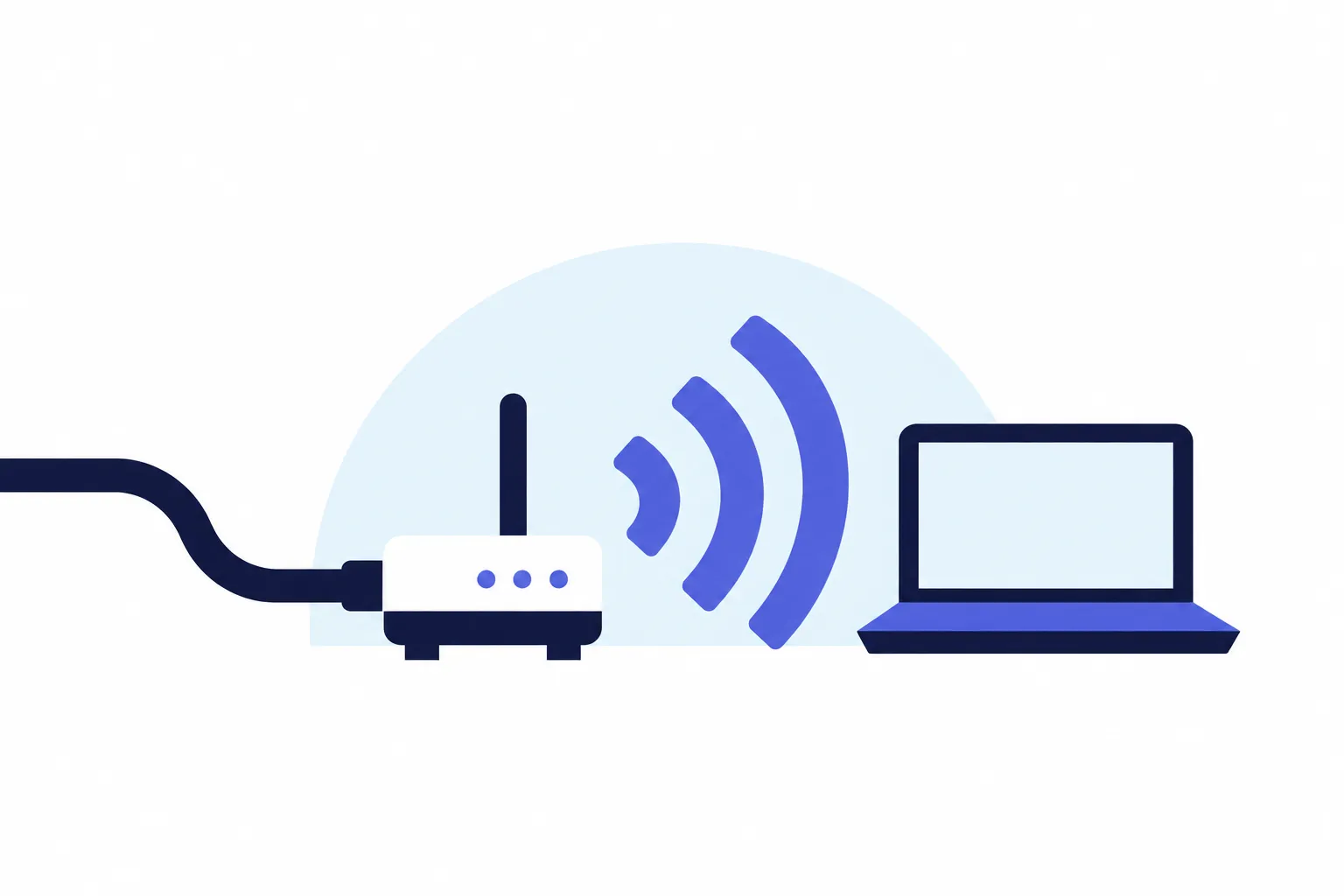
The internet reaches a home over cable, fiber, DSL, fixed wireless or satellite, ending at a modem or gateway; that link's speed is what the provider sells. Inside the home, a router creates a second link, Wi-Fi, between itself and each device. Data crosses both, so a device gets at most what the slower link carries at that moment, shared with everything else running.
What the bill and label promise
Since April 10, 2024 (October 10, 2024 for providers with 100,000 or fewer subscriber lines), providers have had to show a broadband label at the point of sale, according to the FCC's broadband label page. The FCC says the labels are modeled after FDA nutrition labels and must disclose prices, introductory rates, data allowances and broadband speeds. The 2022 rules also list typical download and upload speeds and typical latency among the required fields, and providers must give an existing customer their plan's label on request.
What the 2026 order changes, and when
The July 2026 order, FCC 26-48, approves these changes:
- on provider websites, a clearly identified link or icon next to an advertised plan may replace the full label;
- phone sales staff may summarize key fields (monthly price with fees, typical speeds, latency, data allowance, contract term, early termination fee) instead of reading the label verbatim;
- location-based passthrough fees may be shown as an exact total or an "up to" maximum, split into government-imposed and third-party amounts;
- providers that offer online account portals may link to the customer's current label there;
- the machine-readable data file, the two-year label archive (including the duty to give customers archived labels on request) and the Affordable Connectivity Program field are dropped.
The effective dates are split. The Federal Register notice of August 13, 2026 says the rule took effect September 14, 2026, except the section 8.1(a) amendments, which are delayed indefinitely. Every change listed above sits in section 8.1(a); what took effect in September were definitions, including what counts as a passthrough fee. No effective date for the 8.1(a) changes had appeared in the Federal Register as of October 17, 2026, so the 2022 display rules still apply.
No label field measures Wi-Fi in a room. For a missing or inaccurate label, the FCC points to its Consumer Complaint Center.
The 100/20 benchmark is about availability
The FCC's 2026 Section 706 report, FCC 26-55, was adopted August 13 and released August 14, 2026. It keeps 100 Mbps download and 20 Mbps upload as the fixed broadband benchmark and abolishes without replacement the 1,000/500 Mbps long-term goal set in 2024. By its count, 96.9% of Americans had access to fixed terrestrial service at 100/20 Mbps as of June 30, 2025, a figure that includes fixed wireless.
The benchmark sets which services count when the FCC measures availability; it promises no speed inside a home. The FCC's Broadband Speed Guide (last updated July 18, 2022) lists minimum download speeds per activity, such as 25 Mbps for Ultra HD 4K streaming, and calls them rough guidelines for one activity at a time.
Why Wi-Fi delivers less
- Shared airwaves. A Wi-Fi Alliance policy paper states that the older Wi-Fi bands are often congested in densely populated areas and are shared with Bluetooth, Zigbee, conference audio-visual systems and devices such as garage door openers.
- Channel width and interference. Apple's router guidance says wider channels are faster but more susceptible to interference, recommends 20 MHz channels at 2.4 GHz near other Wi-Fi networks and Bluetooth devices, and advises different channels for routers close together.
- Band. Wi-Fi uses 2.4 GHz, 5 GHz and, on newer equipment, 6 GHz. The Alliance's Wi-Fi generations page calls 5 GHz the less crowded band for high-performance uses and 2.4 GHz the band for basic needs; Apple says interference is less of a concern at 5 and 6 GHz.
- The device. The router and the device must both support a fast standard. The Alliance lists Wi-Fi 6 features such as 160 MHz channels, OFDMA (sharing a channel among devices to improve efficiency and lower latency) and 1024 QAM. A phone or laptop without them cannot use them, whatever the router offers.
- Peak rates and sharing. Intel gives 9.6 Gbps as Wi-Fi 6's maximum throughput across multiple channels, calls it a theoretical maximum that local networks may not reach, and notes that it is shared across devices.
Distance and walls weaken any radio signal; the Alliance's paper notes that insulation in walls and windows reduces how well 6 GHz signals pass from outdoors to indoors. Moving the router closer or adding a second access point shortens the wireless hop; the tests below show whether that is needed.
How to test each speed
Wired first, then wireless
- Connect a computer to the router (or the provider's gateway) with an Ethernet cable and, if possible, turn off its Wi-Fi. Close other downloads and streams.
- Run a browser-based test and note download, upload and latency. This approximates the plan as delivered. If it is far below the plan, repeat at another time of day; a computer whose network port is slower than the plan cannot show the plan speed.
- Unplug the cable, connect by Wi-Fi, and repeat in the rooms where problems occur, standing in the same spot for each run.
The gap between step 2 and step 3 is what the wireless link costs.
Test tools measure different things. M-Lab's explanation of its test says its NDT test uses a single data stream while many other tests use several, and that its servers sit outside providers' last-mile networks. It adds that tests hosted inside a provider's network are, anecdotally, usually higher, so compare results from the same tool.
The FCC's own app is not built for this job. The FCC Mobile Speed Test app evaluates wireless broadband connections to check mobile coverage, and the FCC says tests taken indoors or over a Wi-Fi network will not create challenges.
Worked example: megabits, megabytes and a 5 GB file
There are 8 bits in a byte, so dividing megabits by 8 gives megabytes.
MB/s = Mbps / 8
time (seconds) = file size in megabits / speed in Mbps
file size in megabits = GB x 1,000 x 8   (decimal units)
Illustrative example: a 5 GB file is 5 x 1,000 x 8 = 40,000 megabits. A wired 300 Mbps connection equals 37.5 MB/s, so the download takes 40,000 / 300, about 133 seconds (2 min 13 s). If Wi-Fi in a far room delivers 120 Mbps, an assumed figure, that equals 15 MB/s and the same file takes 40,000 / 120, about 333 seconds (5 min 33 s). The Wi-Fi link runs at 40% of the wired speed and the download takes 200 seconds longer. Protocol overhead makes real downloads somewhat slower.
Frequently asked questions
Does a faster plan fix slow Wi-Fi?
Only if the plan is the bottleneck: the wired result is close to the plan and the wireless result in that room is close to the wired one. If Wi-Fi is well below the wired result, the wireless link is the limit. If the wired result is far below the plan, raise it with the provider; a higher tier will not fix under-delivery.
Does the broadband label list my Wi-Fi speed?
No. The label covers price, introductory rates, fees, data allowances, typical speeds and latency for the plan. It contains no figure for a particular room or device.
Is Wi-Fi 7 a sure speedup over Wi-Fi 6?
Not by itself. Both the router and the device need Wi-Fi 7. The Wi-Fi Alliance introduced Wi-Fi CERTIFIED 7 on January 8, 2024 with features such as Multi-Link Operation and 4K QAM (about 20% higher transmission rates than 1024 QAM), but gave no delivered home speed, and its 320 MHz channels work only where the 6 GHz band is open to Wi-Fi.
Why does my download show a smaller number than my plan?
Often the unit differs. Many download windows show megabytes per second, while plans are quoted in megabits, so a figure one-eighth of the plan speed is expected. A 300 Mbps plan equals at most 37.5 MB/s before overhead.
Is the FCC still measuring provider speeds in homes?
Not through Measuring Broadband America, which used volunteers' at-home equipment from 2011 to 2023 and is currently not collecting data; its last fixed report is dated August 9, 2024. The FCC says it now follows fixed broadband through other initiatives, including the Broadband Data Collection.
A checklist for your next test
- Write down the plan's typical download, upload and latency from the label, your account portal if your provider offers one, or by asking the provider for the label.
- Record a wired test and two or three wireless tests with the date, time and room.
- If the wired result is far below the plan on repeated tests at different times, contact the provider with those records; if only the wireless results are low, look at the router, the band and the device before changing the plan.
- Check which Wi-Fi standard your router and your oldest device support.
Sources
- FCC, Broadband Consumer Labels
- FCC 26-48, Report and Order on broadband labels (adopted July 22, 2026)
- Federal Register, August 13, 2026, Empowering Broadband Consumers Through Transparency
- FCC 26-55, 2026 Section 706 Report
- FCC, Broadband Speed Guide
- FCC, Measuring Broadband America
- FCC, Mobile Speed Test App
- Wi-Fi Alliance, Wi-Fi CERTIFIED 7 (January 8, 2024)
- Wi-Fi Alliance, Wi-Fi generations
- Wi-Fi Alliance, 6 GHz Wi-Fi: Connecting to the future (October 2022)
- Apple Support, recommended settings for Wi-Fi routers
- Intel, Wi-Fi 6
- Measurement Lab, speed tests and accuracy